Watch Several YouTube Streams Simultaneously — Easy Guide

Imagine you're following a breaking news event, wanting perspectives from multiple news channels, or perhaps you're an avid gamer eager to watch several esports tournaments concurrently. YouTube, while being the dominant video platform, inherently limits you to watching a single stream at a time. This can be incredibly frustrating when you need to monitor multiple sources simultaneously. Switching between tabs, constantly pausing and resuming, and potentially missing crucial moments becomes the norm.
This single-stream limitation is a major hurdle for researchers, traders, and anyone who needs to monitor multiple live feeds. Imagine a financial analyst trying to keep tabs on market trends through various financial news channels. Switching between tabs is inefficient and prone to error. Similarly, a security professional monitoring multiple surveillance camera feeds would find YouTube's single-stream approach completely inadequate. The need for a better solution is clear.
Moreover, the traditional approach to overcoming this limitation often involves clunky browser extensions or desktop applications that promise multi-stream viewing. These solutions can be resource-intensive, potentially slowing down your computer and raising concerns about privacy and security. Many users are wary of installing third-party software due to the risk of malware or data breaches. The desire for a simple, secure, and efficient way to watch several youtube streams simultaneously is a common request in online forums and tech communities. The inability to natively watch multiple streams on YouTube highlights a significant gap in the platform's functionality, leaving users seeking alternative solutions.
The EarthLive24 Multi-View: The Solution
EarthLive24 offers a seamless and intuitive solution to this problem with its Multi-View feature. This powerful tool allows you to watch several youtube streams simultaneously, all within a single browser window, without the need for any extensions or downloads. It’s a completely web-based solution designed for convenience and efficiency. You can instantly access watch multiple streams at once with just a click.
The EarthLive24 Multi-View is designed to be incredibly user-friendly. The interface is clean and intuitive, making it easy to add, arrange, and manage multiple streams. Whether you want to monitor live news, sports events, or simply enjoy a variety of content at the same time, our Multi-View feature provides a streamlined experience. You can create custom layouts tailored to your specific needs, ensuring that the most important streams are always in focus.
But the benefits extend beyond just convenience. EarthLive24 Multi-View is built with performance in mind. We understand that streaming multiple videos simultaneously can be demanding on your system, so we've optimized our platform to minimize resource usage. This means you can watch several youtube streams simultaneously without experiencing significant slowdowns or lag. Furthermore, our platform prioritizes security. You don't need to worry about installing potentially harmful extensions or granting unnecessary permissions. It's a safe and reliable way to consume multiple YouTube streams at once. You can even add our own cameras such as Niagara Falls or Bangkok Sukhumvit alongside YouTube streams!
How to Add Streams
Adding streams to the EarthLive24 Multi-View is a straightforward process. First, navigate to the EarthLive24 Multi-View page. You'll be presented with a grid layout where you can add individual streams. Each section of the grid will have an "Add Stream" button.
Clicking the "Add Stream" button will prompt you to enter the YouTube video URL or video ID. Simply copy the URL from the YouTube video you want to watch and paste it into the provided field. The EarthLive24 Multi-View will automatically extract the necessary information and embed the stream into the grid. You can repeat this process for each stream you want to add, up to a maximum of 12 streams.
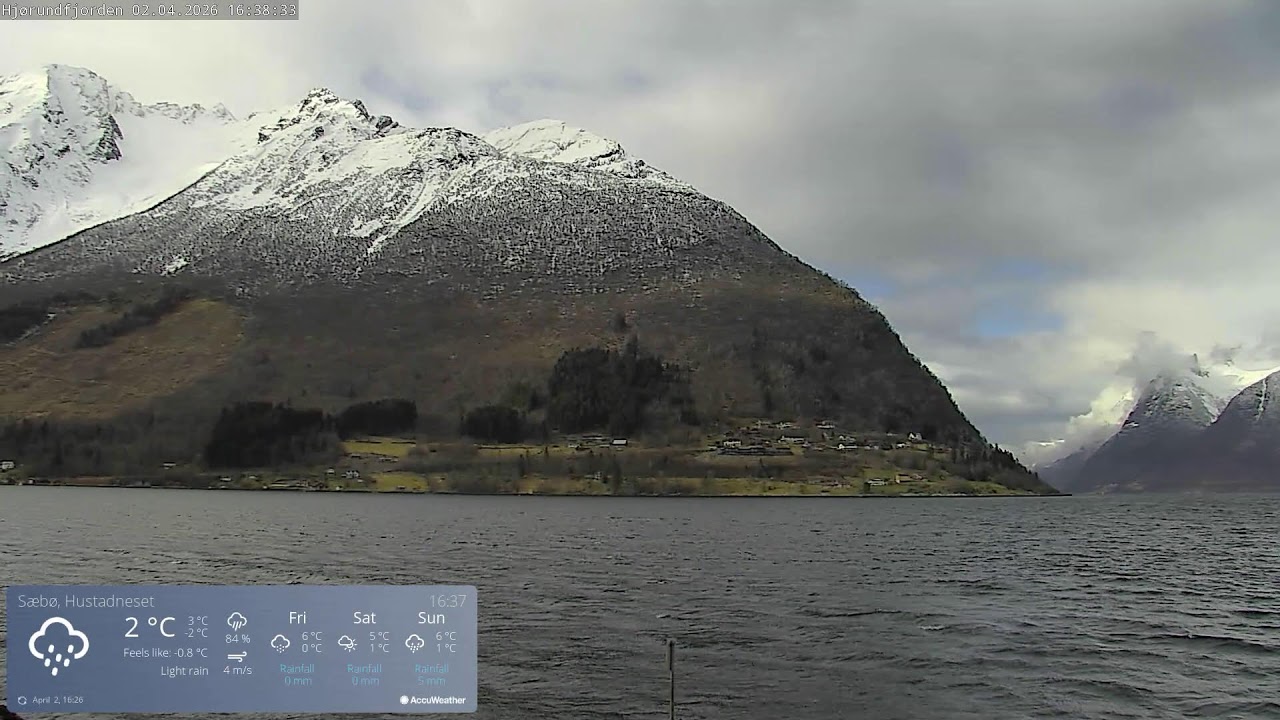
Once you've added your streams, you can easily adjust their layout and size. You can drag and drop the streams to rearrange them within the grid, and resize individual streams to give priority to the content that's most important to you. This level of customization ensures that you can create a viewing experience that perfectly suits your needs. With its drag-and-drop functionality, adding several streams of Yosemite Live, Hjorundfjorden Live and YouTube, along with adjusting their sizes is simple. You'll find that our Multi-View feature makes it incredibly easy to watch several youtube streams simultaneously and efficiently.
Best YouTube Live Streams to Combine
The possibilities for combining YouTube live streams are endless, depending on your interests and needs. For news enthusiasts, combining streams from different news channels like Sky News Arabia (/camera/cam_246) allows for a comprehensive overview of current events. You can compare coverage from various perspectives and stay informed from multiple angles.
For sports fans, the Multi-View feature is a game-changer. Imagine watching multiple esports tournaments simultaneously, or keeping an eye on different matches during a major sporting event. You can track all the action without missing a single moment. For travel lovers, combining travel vlogs with live camera feeds like Amsterdam Centraal (/camera/cam_153) can provide an immersive and engaging experience. You can also explore cameras on the explore cameras on the map and see other parts of the world.
Beyond these examples, the Multi-View feature is also ideal for educational purposes. Students can watch several youtube streams simultaneously, combining lectures, tutorials, and documentaries to enhance their learning experience. Researchers can monitor multiple data streams or live experiments. Traders can keep an eye on multiple financial news channels. The EarthLive24 Multi-View is a versatile tool that can be adapted to a wide range of applications. You might even combine Davao City Market with travel vlogs about the Philippines for a virtual tour!
Bandwidth and Performance Tips
Streaming multiple videos simultaneously can be demanding on your internet connection and computer resources. To ensure a smooth and uninterrupted viewing experience, here are some tips for optimizing bandwidth and performance. First, ensure that you have a stable and reasonably fast internet connection. A broadband connection with sufficient bandwidth is essential for streaming multiple high-quality videos. Consider upgrading your internet plan if you frequently experience buffering or lag.
Next, close any unnecessary applications or browser tabs that may be consuming bandwidth or processing power. This can help free up resources and improve the performance of the EarthLive24 Multi-View. You might even want to check out the live view of Seoul Station while you're at it! Adjusting the video quality of individual streams can also help reduce bandwidth consumption. If you don't need to watch several youtube streams simultaneously in high definition, consider lowering the resolution to 720p or 480p. This can significantly reduce the amount of data being transferred and improve performance.
Additionally, ensure that your computer's hardware meets the minimum requirements for streaming multiple videos. A modern processor, sufficient RAM, and a dedicated graphics card can all contribute to a smoother viewing experience. Regularly clearing your browser's cache and cookies can also help improve performance. By following these tips, you can optimize your bandwidth and performance and enjoy a seamless experience when you watch several youtube streams simultaneously using the EarthLive24 Multi-View.
Mobile Simultaneous Viewing

While the EarthLive24 Multi-View is primarily designed for desktop use, you can still access and use the feature on mobile devices. However, the experience may vary depending on the size and capabilities of your device. On larger tablets, the Multi-View feature should work relatively well, allowing you to watch several youtube streams simultaneously with a reasonable degree of clarity. You can easily keep an eye on Nordkapp Fishing while browsing other content on your tablet.
On smartphones, the screen size may be a limiting factor. While you can still access the Multi-View feature, the individual streams may be quite small and difficult to see clearly. However, if you have a high-resolution display and good eyesight, you may still find it useful for monitoring multiple streams at a glance. Consider using a smartphone with a larger display for a better experience.
For mobile viewing, it's especially important to optimize your bandwidth and performance. Connect to a stable Wi-Fi network whenever possible, and close any unnecessary apps running in the background. Lowering the video quality of individual streams can also help reduce bandwidth consumption and improve performance on mobile devices. Despite the limitations of screen size, the EarthLive24 Multi-View can still be a valuable tool for mobile users who need to monitor multiple streams on the go. You can view Fairmont Dubai Palm on your phone to get a glimpse of the United Arab Emirates.
FAQ
Can I use the EarthLive24 Multi-View for free?
Yes! The EarthLive24 Multi-View is completely free to use. There are no hidden fees or subscriptions required. We want everyone to have easy access to watch several youtube streams simultaneously.
How many streams can I watch at the same time?
The EarthLive24 Multi-View supports up to 12 simultaneous streams. This allows you to create a comprehensive and customized viewing experience.
Do I need to install any software or extensions?
No, you don't need to install any software or browser extensions. The EarthLive24 Multi-View is a web-based application that works directly in your browser.
Is the EarthLive24 Multi-View safe to use?
Yes, the EarthLive24 Multi-View is safe and secure. We do not collect any personal information and we do not require any special permissions.
Can I customize the layout of the streams?
Yes, you can easily customize the layout of the streams by dragging and dropping them within the grid. You can also resize individual streams to give priority to the content that's most important to you.
What if a stream is not working?
If a stream is not working, first check your internet connection. If your connection is stable, try refreshing the page. If the problem persists, the stream may be temporarily unavailable from the source.