
How to Set Up a Multi-Stream Viewer for Free

Keeping up with the world can feel overwhelming. News channels, captivating webcams, and important live events constantly compete for your attention. Switching between multiple tabs or devices is cumbersome and you might miss crucial moments. Fortunately, there's a solution that empowers you to monitor everything simultaneously: a multi stream viewer free. This guide demonstrates how to create your personalized viewing experience without spending a dime using EarthLive24.
Imagine watching the Eiffel Tower in France while simultaneously keeping an eye on Grand Cayman Beach in the Cayman Islands. Or perhaps you're tracking breaking news from CNN Turk while enjoying the serene views of Barn Owls UK. A multi stream viewer free makes all of this possible, all on one screen. No more juggling tabs; just a unified view of the content that matters most to you.
EarthLive24 offers a user-friendly and completely free multi stream viewer free solution. You don't need to download any software, create an account, or endure complicated setup processes. This guide will walk you through each step, ensuring you can quickly and easily create your ideal multi-stream setup. Whether you're a news junkie, a nature enthusiast, or simply enjoy observing the world, you'll find immense value in this versatile tool.
What You Need to Get Started
The beauty of EarthLive24's multi-stream viewer is its simplicity. You don't need any special equipment or technical expertise to get started. All you need is a device with a modern web browser and a stable internet connection. This could be a desktop computer, a laptop, a tablet, or even a smartphone. Any device capable of displaying web pages and playing video streams will work perfectly. The faster your internet connection, the smoother your viewing experience will be, especially when streaming multiple high-definition cameras simultaneously.
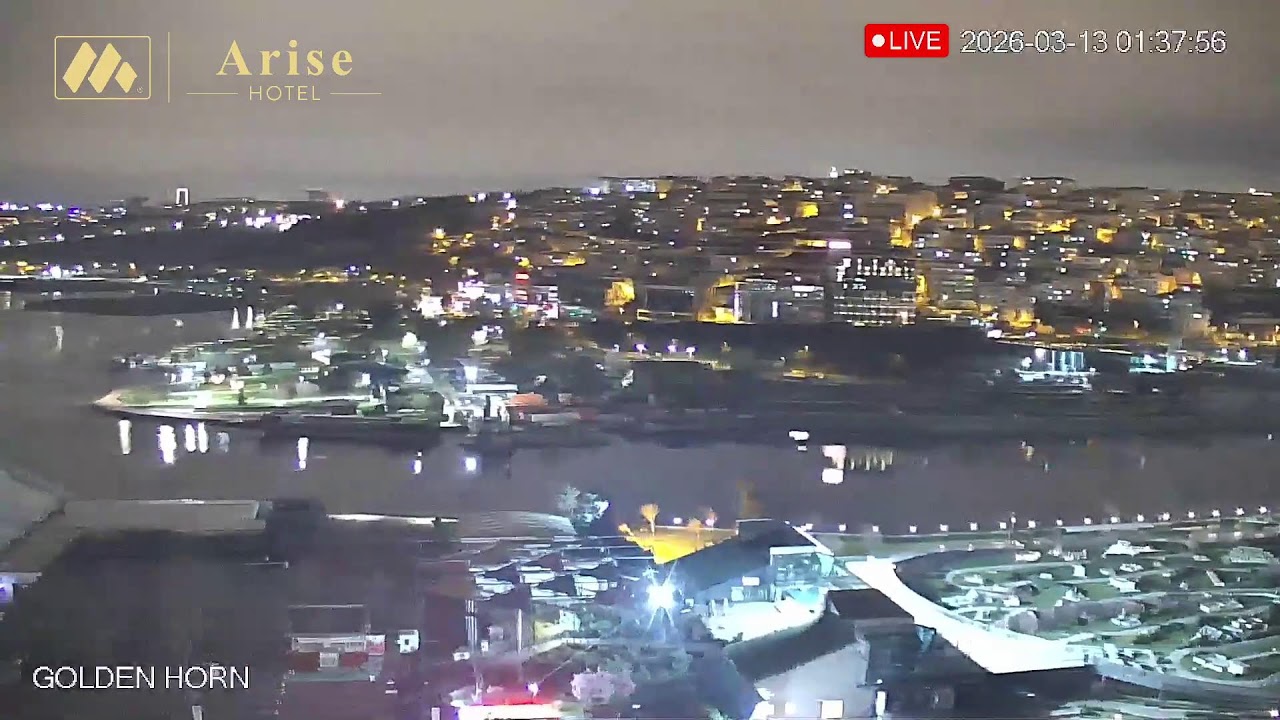
Before you begin, take a moment to consider the types of streams you want to watch. Do you want to keep up with the latest news from around the world? Do you want to observe wildlife in their natural habitats? Or perhaps you want to enjoy the scenic views from different locations? Having a clear idea of your preferred content will make the selection process much easier. Consider locations like Turkey with the Istanbul Golden Horn camera, or Thailand with the Bangkok Sukhumvit camera, as initial streams.
Furthermore, consider your viewing habits. How much screen real estate do you want to dedicate to each stream? Do you prefer a grid layout with equal-sized windows, or a more dynamic layout with a primary stream and smaller secondary streams? These factors will influence your choice of layout and customization options later on. Having a few streams in mind, like Tembe Elephant Park in South Africa for nature or Tokyo Kabukicho 2 in Japan. This page is specifically designed to host the multi stream viewer free functionality, providing a clean and intuitive interface for selecting and arranging your desired streams. The page loads quickly and is optimized for various devices, ensuring a seamless experience regardless of whether you're using a desktop computer or a mobile device.
Once the page loads, you'll notice a flexible grid layout ready to be populated with live camera feeds. Initially, the grid will be empty, awaiting your stream selections. Don't worry; adding streams is incredibly easy and can be done in just a few clicks, as you'll see in the next step. The interface is designed to be self-explanatory, with clear visual cues guiding you through the process.
This Multi-View page is your central control panel for creating and managing your custom viewing experience. From here, you'll be able to add, remove, rearrange, and resize streams to your liking. It's a blank canvas waiting for you to fill it with the views that matter most to you. So, take a moment to familiarize yourself with the layout and get ready to start adding some streams!
Step 2: Select Your Streams
Now comes the exciting part: choosing the live camera streams you want to include in your multi-view setup. EarthLive24 offers a vast selection of cameras from around the world, covering a wide range of categories, including cities, beaches, nature, landmarks, and news. You can easily browse through the available cameras using the website's navigation menu, or you can use the search function to find specific locations or keywords. Consider checking out some of the popular cameras like Cape Kiwanda Beach in the United States or Clifton Beach Cape Town in South Africa.
To add a stream to your multi-view layout, simply click on the camera you want to add. The stream will automatically appear in one of the available slots in the grid. You can add as many streams as the layout allows, creating a comprehensive view of the world. If you change your mind, you can easily remove a stream by clicking the "X" button located in the corner of the stream's window.
For example, if you are interested in world news, you might add CNN Turk to one of your streams. If you are planning a trip, you could add Flights to Paris to one stream and Hotels in Paris to another, then watch the Eiffel Tower live. Don't forget to explore cameras on the map to discover hidden gems and unique perspectives. The system is designed to be highly flexible, allowing you to experiment with different combinations until you find the perfect setup for your needs. You can also check out our category pages for more inspiration, such as /cameras/cities, /cameras/beaches, /cameras/nature, /cameras/landmarks, and /cameras/news.
Step 3: Customize the Layout
Once you've selected your streams, you can customize the layout to suit your preferences. EarthLive24's multi stream viewer free offers several options for arranging and resizing the stream windows. This ensures you can prioritize the streams that are most important to you and create a visually appealing and functional viewing experience.
One of the key customization options is the ability to drag and drop streams to rearrange their positions in the grid. Simply click on a stream's window and drag it to a new location. The other streams will automatically adjust to accommodate the change. This allows you to quickly and easily create a layout that reflects your priorities. Perhaps you want to move the Istanbul Golden Horn webcam to the top left, or the Bangkok Sukhumvit stream to the bottom right.
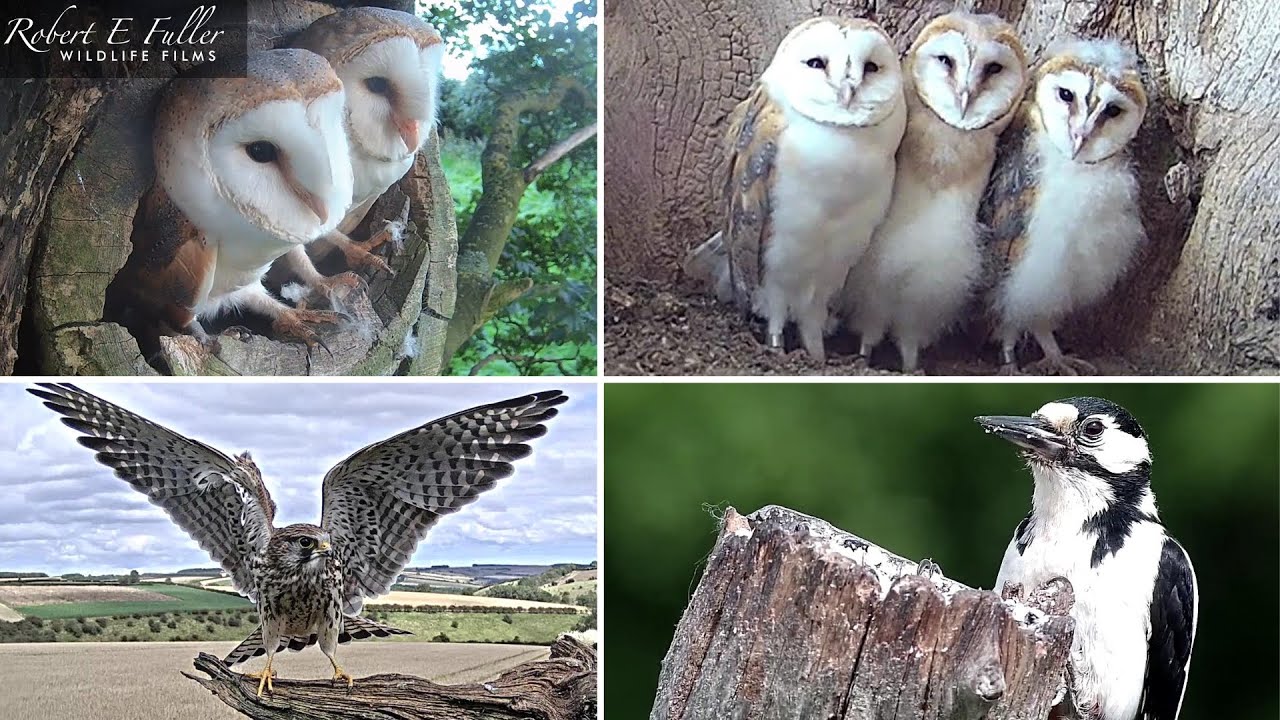
Another important customization option is the ability to resize the stream windows. Depending on the layout you choose, you may be able to adjust the size of individual streams, making some larger and others smaller. This is particularly useful if you want to focus on one stream while still keeping an eye on the others. For instance, you might want to make the Barn Owls UK stream larger if you're particularly interested in observing their behavior. Experiment with different layouts and sizes to find what works best for you.
Step 4: Save Your Setup
While EarthLive24 does not currently offer account-based saving of specific multi-view setups, there are still ways to preserve your customized layout for future use. The easiest method is to simply bookmark the URL of your multi-view page. The URL will automatically include the parameters for your selected streams and layout, so when you revisit the page, your setup will be restored.
However, it's important to note that this method relies on the specific camera IDs remaining consistent. If a camera is temporarily offline or its ID changes, the corresponding stream may not load correctly. To mitigate this, you can periodically check your saved setups to ensure they are still functioning as expected. Another option is to take screenshots of your favorite layouts for future reference, allowing you to easily recreate them if necessary.
As EarthLive24 continues to develop and enhance its platform, the possibility of account-based saving of multi-view setups may be introduced in the future. This would provide a more convenient and reliable way to preserve your customized layouts, allowing you to access them from any device with your login credentials. Until then, bookmarking and screenshots are effective workarounds for saving your multi stream viewer free configurations.
Advanced Tips and Tricks
Maximize your experience with these advanced tips! First, use multiple browser windows or tabs. You can create several different multi-stream setups, each focusing on a specific theme or category. For example, you could have one window dedicated to news channels, another to nature webcams, and a third to cityscapes. This allows you to quickly switch between different viewing modes without having to reconfigure your layout each time.
Second, leverage browser extensions for enhanced control. Certain browser extensions can provide additional functionality, such as the ability to automatically refresh streams at specified intervals or to mute audio from specific streams. This can be particularly useful if you want to monitor a news channel without being constantly bombarded with sound. Experiment with different extensions to find ones that suit your needs and preferences.
Third, consider using a second monitor. If you have the option, connecting a second monitor to your computer can greatly enhance your multi-stream viewing experience. You can dedicate one monitor to your primary work or entertainment activities and use the other monitor to display your multi-stream setup. This allows you to keep an eye on the world without disrupting your main workflow. A multi stream viewer free on a second monitor can be a great productivity booster!
Fourth, explore the EarthLive24 API (if available). For advanced users, an API (Application Programming Interface) would allow for programmatic control over the multi-stream viewer. This would enable you to create custom scripts and applications that automate the process of adding, removing, and rearranging streams, as well as integrating the multi-stream viewer into other applications. Check the EarthLive24 website for information on API availability.
Finally, give feedback! EarthLive24 thrives on user input. If you have suggestions for improving the multi stream viewer free, don't hesitate to contact the EarthLive24 team. Your feedback can help shape the future of the platform and make it even more useful for everyone.
FAQ
How much does it cost to use the multi-stream viewer?
It's completely free! EarthLive24 is committed to providing free access to live camera streams from around the world, and the multi-stream viewer is no exception. You can create and customize your viewing experience without paying any fees or subscriptions. Enjoy the world through a multi stream viewer free!
Can I use the multi-stream viewer on my mobile device?
Yes, the multi-stream viewer is designed to be responsive and work seamlessly on mobile devices. Simply open the EarthLive24 website in your mobile browser and navigate to the multi-view page. The layout will automatically adjust to fit your screen size.
How many streams can I add to the multi-stream viewer?
The number of streams you can add depends on the layout you choose. Some layouts allow for more streams than others. Experiment with different layouts to find one that suits your needs. The more streams you have, the more you can experience through a multi stream viewer free.
Can I save my multi-stream setup for later?
Currently, EarthLive24 does not offer account-based saving of setups. However, you can bookmark the URL of your multi-view page to restore your setup later. The URL will automatically include the parameters for your selected streams and layout.
How do I remove a stream from the multi-stream viewer?
To remove a stream, simply click the "X" button located in the corner of the stream's window. The stream will be removed, and the other streams will automatically adjust to fill the space.
Why is one of the streams not loading?
There are several reasons why a stream might not load. The camera might be temporarily offline, the internet connection might be unstable, or there might be a technical issue with the EarthLive24 platform. Try refreshing the page or selecting a different stream. If the problem persists, contact the EarthLive24 support team.